Frequently Asked Questions - Businesses
- How do I create a business local page after creating an account?Yes, you can. Whether you have one or 100 different businesses, you can advertise and manage them all from a single dashboard on Top4.
To add different business, upgrade your plan to Your Website Team or you can contact our Support team at [email protected]. - How do I make changes to my business local page?
- Log in to your Top4 account. On the member page, click "Manage My Business". You will be directed to your business page.
- Under the "Your Active Businesses" tab, click "Edit this business" on the right-hand menu of the business you wish to edit.
- You can now make the necessary changes.
- How do I pause my business?If your business is temporarily closed for one or other reasons, you can opt to pause your business.
- Log in to your Top4 account.
- On the member dashboard, click "Manage My Business". You will be directed to your business page.
- Under the "Your Active Businesses" tab, click "Pause this business" on the right hand menu of the business you wish to pause.
You still can find your inactive business local page on the "Your Paused Business" tab. The business local page has been paused, however, your profile account remains active. Please be informed that pausing your Top4 local page means you will lose all Google rankings. - How do I hide the address on Top4?If you're an online business owner and you don't want your home address to be published for the public to see, we've got you covered.
- Log in to your Top4 account.
- On the left side menu, click "Manage My Business".
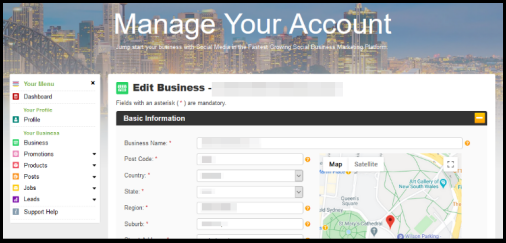
- You will be directed to your business page. On the right hand menu, click "Edit this business".
- On the Basic Information forms, you can tick the "Hide Location" box.
- Click the "Submit" button.
Once you've completed these steps, you can go back to your business local page and check if the address is already hidden. - I have hidden my address information on my local page. Why it is still showing up on Google Search?Google takes some time to crawl and index your update. The total time can vary from a day or two to a few weeks.
- How will I know if a potential customer makes an enquiry?
Customers appreciate a business that responds promptly to their questions. You can manage your business enquiries by yourself within your Top4 account.
Follow these steps to manage your enquiries.
- Log in to your Top4 account.
- On the left side menu, click "Leads" > "Business Enquiries".
- Under the "My Leads" tab, you will find a list of leads that have contacted you. Click on each lead to see details of their queries.
Responding to customer inquiries is so vital to prevent negative reviews and feedback. For questions or assistance in managing your leads in Top4, please contact our Support team. - How do I rate businesses?You need to login to your Top4 account to rate businesses.
After you're logged in, look for the rating star icons found on the right-hand side of the company logo. Click on the stars and correspond to how do you want to rate the business. - How do I contact the business owner?You can use various ways to contact a business by choosing from the options listed under the business address:
- Phone: Click the business phone number on the right-hand side of the local page.
- Email: Click "Email" and a pop-up window will appear containing a form for you to type in your message.
- Web: Click "Website" or "Visit Our Website" and you will be directed to the business's website.
You can also click the "Contact Us" button" found on the right-hand side of the local page to send a message to the business owner. - My business is closed. How can I delete my business advert?If your business has closed, you can remove your business local page from Top4. Here is a guide on how to do so.
- Log in to your Top4 account.
- On the left side menu, click "Manage My Business".
- You will be directed to your business page.
- On the right side menu of the selected business, click "Pause this business" on the business you'd like to remove.
Once you've followed the steps, you still can find your inactive business local page on the "Your Paused Business" section.
Take note that pausing the business means that the local page has stopped showing in public, however, your profile account remains active and you can repost your business anytime you see fit. - I have multiple locations for my business. Can I list them all?Yes, you can. Whether you have one or 100 locations, manage all your businesses from a single dashboard on Top4.
To add multiple business locations, upgrade your plan to Your Website Team or you can contact our Support team at [email protected]. - Can I add extra keywords to my local page?The use of keywords has a significant impact on organic page rank in search engines. By placing strategic and relevant keywords in the local page, your Top4 local page is more likely to rank better on the search engine results page.
Your Free Plan allows you to have one keyword on your local page. Upgrade to our Premium Plan to access our premium features and be entitled to up to 20 keywords. - How can I add the service areas to my local page?Adding service areas in your Top4 local advertisement allows you to target customers based on the suburbs where your business is located. Follow these steps to add more suburbs to your service areas.
- Login to your Top4 account.
- On the member page, click "Manage My Business".
- You will be directed to your business page. On the right hand menu, click "Edit this business".
- On the Service Area form, you can add up to 40 suburbs nearby that are outside your location.
Now that you have added service areas, Top4 will help put your local business in front of the right people. However, this feature is only available for the Premium local page. To get the most out of Top4 features, upgrade your plan to Premium. - A business profile of my business already exists. How do I claim my business?To become the owner of a business registered on this site, please follow the steps below:
- Sign up on top4.com.au and create an account.
- You will receive an email with your login details.
- Sign in to your Top4 account with the login details you’ve received from your email.
- Go to the local page of your business.
- Click "Claim This Business".
- Follow the processes accordingly.
After successfully following the steps above, you can now update your business' information.
If you encounter any problems with claiming your business, don't hesitate to contact us at [email protected]. - What should I do if my business has already been claimed by another user?If you find that your business profile has already been claimed by someone else, contact us at [email protected].
- I have multiple businesses that I want to advertise on Top4. How can I add a business?Whether you have one or 100 different businesses, you can advertise and manage them all from a single dashboard on Top4.
To add different business, upgrade your plan to Your Website Team or you can contact our Support team at [email protected]. - Can I advertise multiple businesses on Top4 with a single account?Yes, you can. Whether you have one or 100 different businesses, you can advertise and manage them all from a single dashboard on Top4.
To add different business, upgrade your plan to Your Website Team or you can contact our Support team at [email protected]. - How to remove ads from my business page?The Ads-Free feature is only available if you're on the Premium plan. Upgrade here to remove ads from your business local page.
- What are Badges on Top4?The Badges feature allows you to show your affiliation with industry organisations or that you can be found on food delivery applications if you’re in the F&B industry. Badges provide reassurance for customers, enhancing their confidence in doing business with you.
You can find badges on the right-hand side of your local page under the "Credentials (Badges & Affiliations)" section. Custom badges are only available if you're on the Premium plan. - Where's the badge on my business page?The Badges feature allows you to show your affiliation with industry organisations or that you can be found on food delivery applications if you’re in the F&B industry.
You can find badges on the right-hand side of your local page under the "Credentials (Badges & Affiliations)" section. Custom badges are only available if you're on the Premium plan. - Why are my logo and banner image not appearing on my local page?Your company logo and banner image will not be displayed on your basic local page. Upgrade here to display logo and banner image on your Top4 local page.
- I never registered my business on your platform. Why is my business listed on your platform?If you recently purchased or renewed your domain from CrazyDomains, your Top4 local page is an add-on service that you only avail of during or after domain registration or renewal in CrazyDomains. Hence, the information on your Top4 local page is actually auto-filled from your CrazyDomains profile information.
Take note that you could leverage your digital presence on Top4 by updating your business information on our platform so more people can find your business! - How do I edit my Top4 local page information from CrazyDomains?Learn how to manage and edit the domain local page on Crazy Domains with these simple steps:
- Log in to your Crazy Domains Account Manager.
- Click Domains on the menu bar at the top of the page, then click the domain name with an activated domain listing service that you want to manage.
- Go to the Domain Listing section, then click the Manage button.
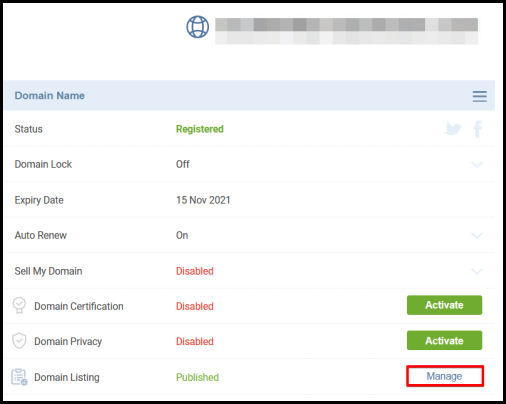
- It will redirect you to the Online Marketing Hub. Select Business Directory.
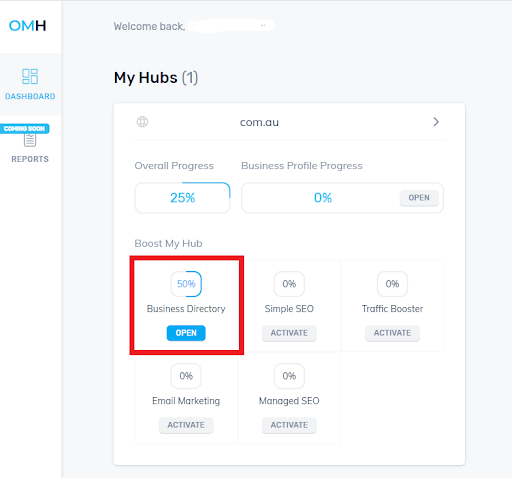
- Click “Visit”.
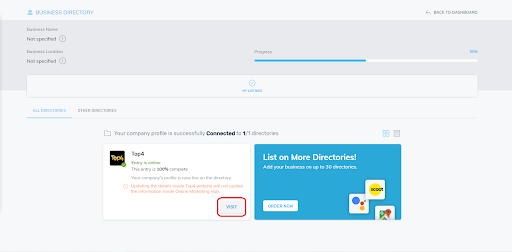
- It will redirect you to the Top4 Manage your Account page.